Finance · AI expenses

Expense Capture with Artificial Intelligence

Upload the bank statement or the invoice and the AI extracts the expenses, classifies them and recognizes your vendors. You review and edit before recording: month-end close stops being an afternoon of manual data entry.

No credit card required

upload the document, the AI processes it, you review and create
3 stepsupload the document, the AI processes it, you review and create
bank statements and invoices, up to 10 MB
PDF · CSV · XLSXbank statements and invoices, up to 10 MB
the AI recognizes the ones you already have on file
Vendorsthe AI recognizes the ones you already have on file
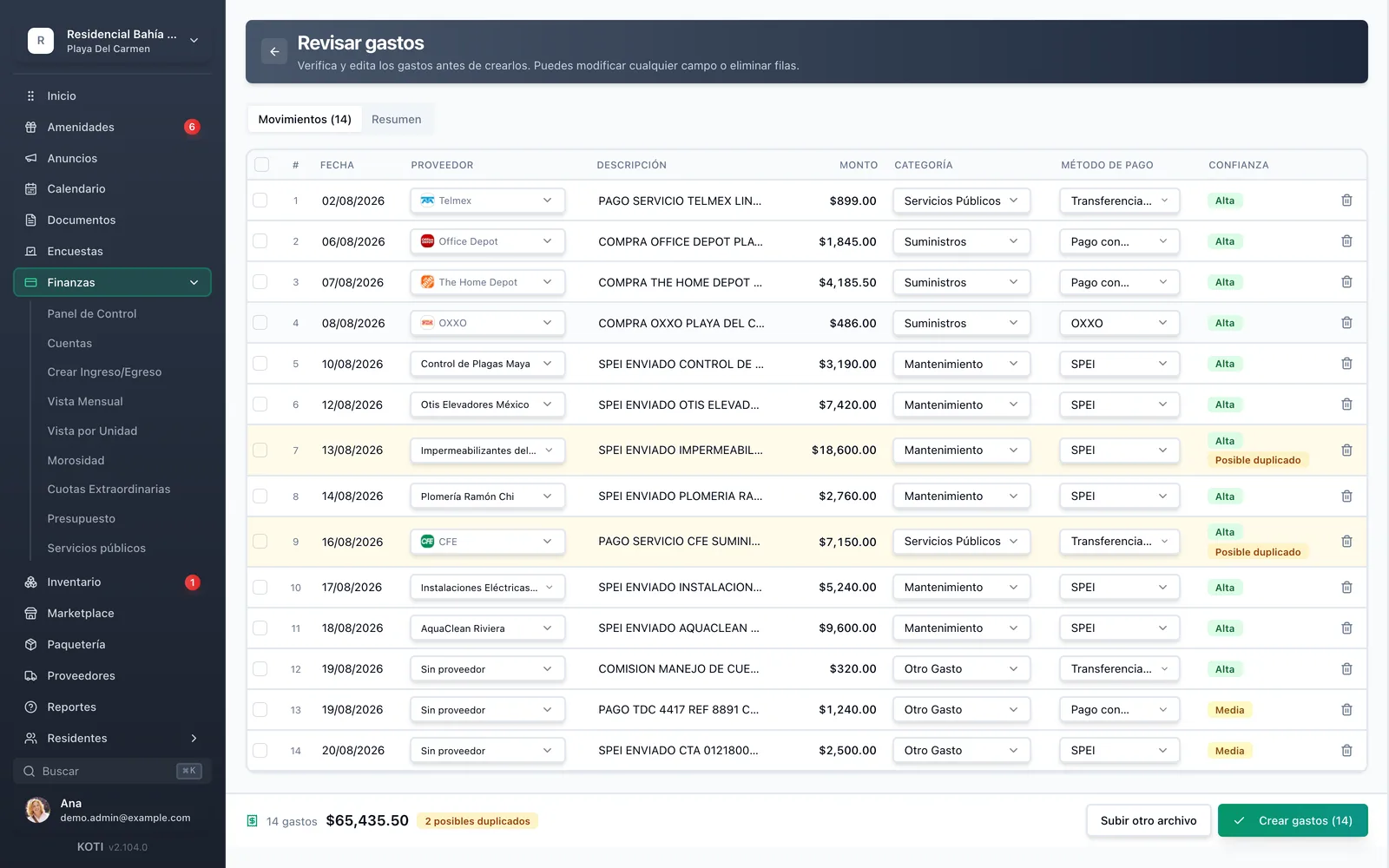
The Koti review screen after an AI statement import: 14 expenses with detected supplier, editable category and method, confidence badges, and two rows flagged as possible duplicates.

The problem

What changes on day one

Today

Month-end close starts by opening the bank statement and typing every movement in by hand.

With Koti

You upload that same file and the AI extracts the expenses already split by concept and amount.

Today

Classifying each expense is one decision repeated fifty times: was this services, supplies or maintenance?

With Koti

The AI proposes the category and recognizes the vendor; you only correct what does not fit.

Today

A typo in an amount gets discovered at the assembly, three weeks later.

With Koti

Everything passes through a review screen: you edit any field before the expense is recorded.

Admin

Management uploads the file and reviews the result

The AI does the data entry; the decision stays yours. Nothing is recorded until you approve it.

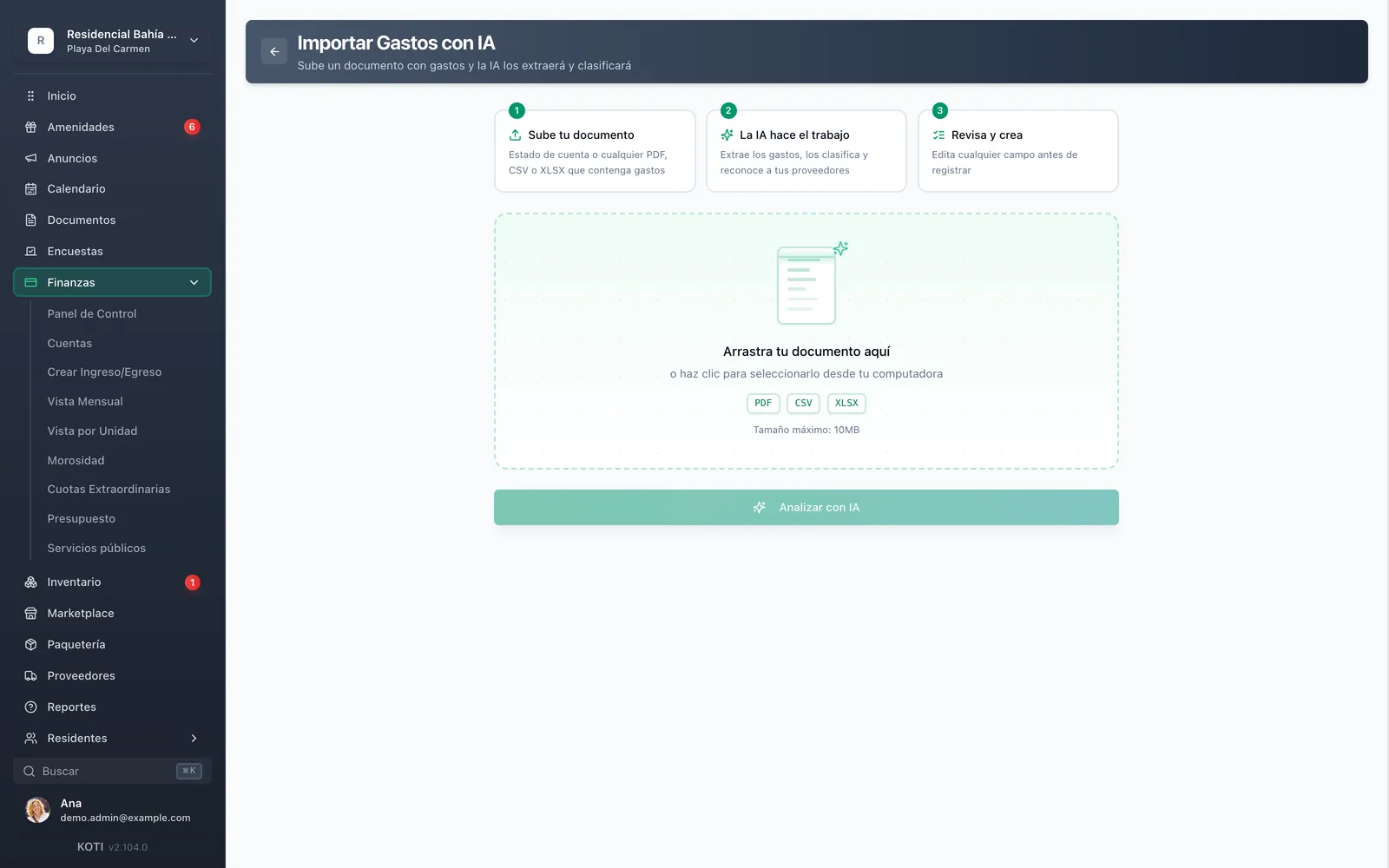
The Koti AI expense import screen with the steps “upload your document”, “the AI does the work” and “review and create”.

Import

Drag in the bank statement, that’s it

  • A bank statement, an invoice, or any PDF, CSV or XLSX that contains expenses
  • The AI extracts the expenses, classifies them and recognizes the vendors you already have on file
  • Every row carries a confidence level and flags itself if it looks like a duplicate of something you already recorded
  • Before recording, you edit any field: date, category, vendor, description or amount
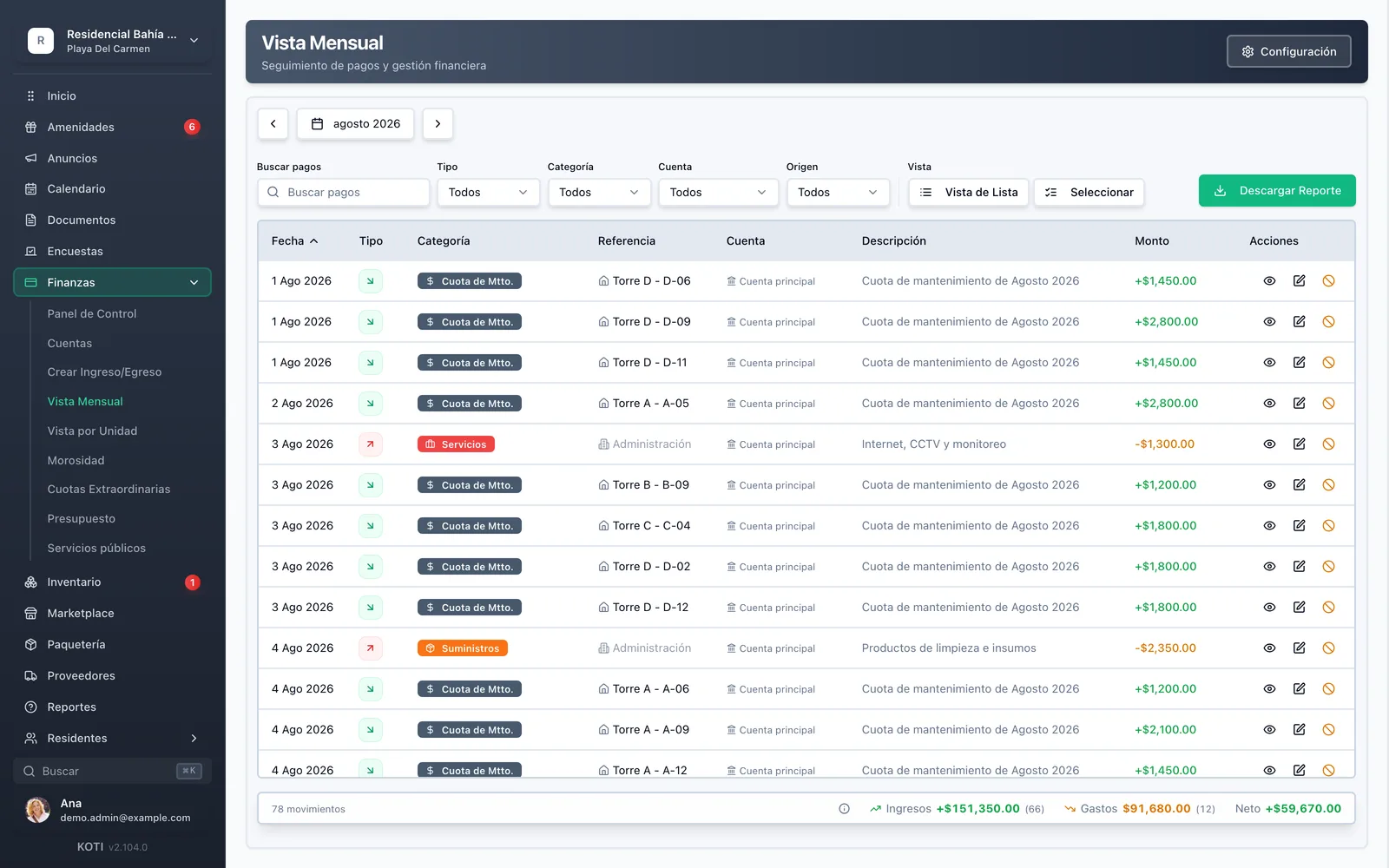
The Koti monthly view with expenses already classified by category — services, supplies, insurance, staff salary, maintenance — and the month’s total.

Close

The expenses land where they belong

  • Every imported expense shows up in the monthly view with its date, category, account and description
  • Real condominium categories: services, supplies, insurance, staff salary, utilities, maintenance
  • From there come the month’s net balance and the expenses-by-category chart in the financial report

In detail

AI expense capture, in detail

Automatic extraction and classificationAI

You upload a document containing expenses and the AI extracts and classifies them. That is the step that normally eats the whole afternoon of month-end close: reading a bank statement line by line and deciding which category each movement belongs to.

Vendor recognitionAI

The AI does not only read the amount: it recognizes the vendors you already have on file for the community and ties the expense to the right one, instead of leaving you a loose description from the bank.

PDF, CSV or XLSX

It accepts the statement your bank sends, the vendor’s invoice, or any PDF, CSV or XLSX file containing expenses, up to 10 MB. Nothing has to be converted into a special template.

You review before recording

The third step is always human: you edit any field before creating the movement, and every row carries its confidence level — high, medium or low — so you know where to look. The AI speeds up data entry, but the expense that ends up in the community’s books is the one you approved.

Duplicate detection

The real risk of importing is not getting an amount wrong, it is booking the same expense twice. Every movement is checked against what is already recorded across the months the file covers and gets flagged as a possible duplicate before you create it.

You can tell what came from AI

Every imported movement stays marked as such in the monthly view, and you can filter the ledger by origin to separate hand-entered from imported. The document you uploaded also stays attached to the movements that came out of it, so the backup travels with the record.

Categories from a real community

Services, supplies, insurance, staff salary, utilities, maintenance, special assessment. The categories are the ones actually used in a condominium’s books, and they are configured from the finance settings.

Less data entry at month-end

Imported expenses land straight in the monthly view and feed the net balance and the expenses-by-category chart of the financial report. Importing stops being a separate errand and becomes the first step of the close.

Your turn: set it up in 5 minutes

Try Koti in your community today, without the headaches.

14-day free trial · No credit card required

Prefer to be shown around? Book a demoMessage us on WhatsApp

Security & compliance

SSL/TLS encryption

All communications encrypted and sensitive data protected in transit and at rest.

LFPDPPP compliant

Personal data protection compliant with Mexican law (LFPDPPP).

Daily backups on AWS

AWS infrastructure with automatic daily backups.

Frequently asked questions

A bank statement, an invoice, or any PDF, CSV or XLSX file containing expenses, up to 10 MB. There is no need to convert it into a template or tidy it up first.
No. The process has three steps and the last one is yours: the AI extracts and classifies, then shows you the result so you can edit any field before creating the movements. Nothing enters the community’s books without your review.
Yes. Beyond extracting and classifying the expenses, the AI recognizes the vendors you already have on file for the community, so the movement ends up tied to the right one instead of keeping the bank’s raw description.
In the monthly finance view, with their date, type, category, account and description, exactly like a manually entered expense. From there they feed the month’s total expenses, the net balance and the expenses-by-category chart of the financial report.

Start with 14 free days

Set up your community in minutes and try all of Koti — no card, no lock-in.

No credit card requiredSee pricing

See everything in Finance
Questions? Chat with us