Scoped permissions: give your team access without handing over the whole condo
Five access areas, a menu that builds itself for each person, and the decisions that matter always in the general administrator’s hands.
- Published
- August 5, 2026
- Reading
- 6 min read
- Author
- Equipo Koti
- Sections
- 6
There is an awkward moment in every growing management office: you need someone else in the system. The external accountant who reconciles payments. The maintenance lead who handles tickets. The gatehouse staff who log visitors. And you discover that the only way to let them in is to make them administrators of everything.
So the accountant ends up with access to the gate log. The maintenance lead can see who owes what. And you sleep a little worse. If you run more than one community, work with an external accountant or subcontract security, this is exactly your problem.
That was the blind spot, and it is now solved. In Koti a general administrator can name administrators with limited access to the areas they choose. Everyone enters their own patch, sees a short menu with their tools, and never even bumps into the rest of the platform.
Contents
One key for the whole building
Think about how you manage the physical keys to your community. The gardener does not carry the key to the machine room. The cleaning crew does not carry the one to the administration office. Nobody argues about this: it is operational common sense.
Software, on the other hand, has almost always shipped with a single master key. You were an administrator or you were nothing. And that produces three problems that cost money and peace of mind:
- Unnecessary risk. The more people who can see banking details, statements and residents' personal data, the bigger the exposed surface. Not because your team is dishonest, but because one compromised account opens everything at once.
- Mistakes from noise. A menu with twenty sections that are none of your business is a menu where sooner or later you will click where you should not have. The expensive mistake is rarely the malicious one — it is the distracted one.
- Friction that blocks delegation. Plenty of managers end up delegating nothing and doing everything themselves, simply because granting full access felt like too much. The system should not punish you for wanting to share the work.
The answer is not a hundred-checkbox panel nobody ever configures. It is a handful of areas that match how work is actually organised in a community.
Five areas, not a hundred checkboxes
Koti groups the whole platform into five access areas. A limited administrator holds one or several; the general administrator holds all of them, plus the community settings.
The grouping is not arbitrary: it follows roles that already exist in a management office. If someone in your community "runs the gatehouse", that person needs Security. If someone "runs the dues", they need Finance. Nothing to translate.
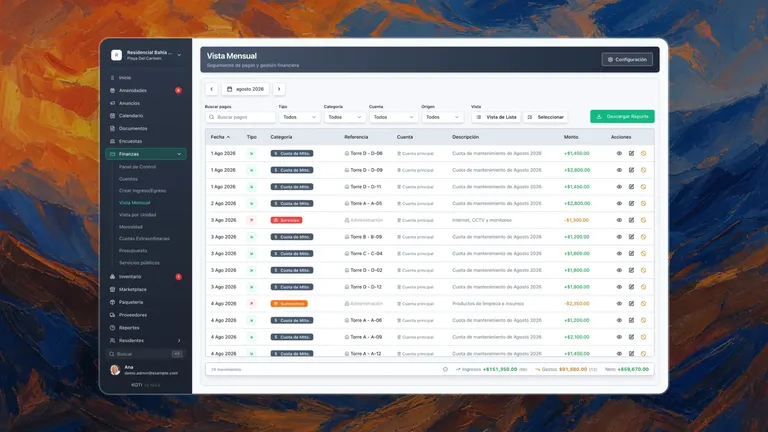
Finance
Accountant or treasurer
- Payments and statements
- Per-unit arrears
- Financial reports
- Suppliers
Operations
Maintenance lead
- Tickets and maintenance
- Amenities and bookings
- Packages
- Inventory
Security
Head of the gatehouse
- Access log
- Visitor QR codes
- Patrol rounds
- Gatehouse devices
Community
Communications committee
- Announcements
- Polls and votes
- Documents
- Calendar
Residents
Front desk
- Resident directory
- Units and owners
- Pets and vehicles
General administrator
Board or property manager
All five areas, plus community settings, billing, and the authority to name the other administrators. There must always be at least one.
See it working
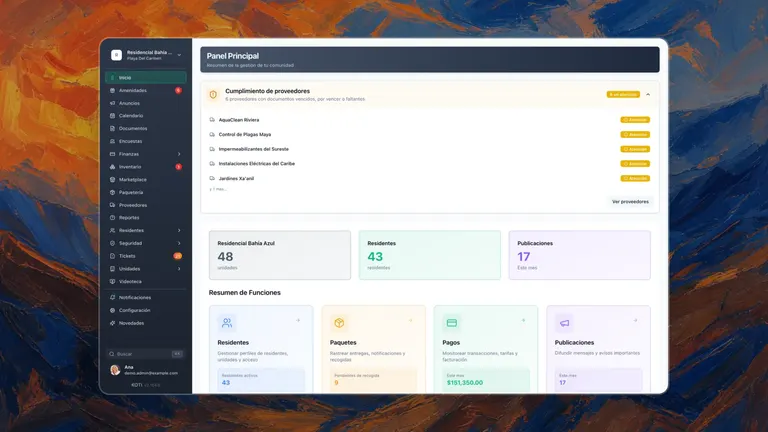
Checking an area does not just open a section: it rebuilds that person's navigation. Sections outside their scope disappear from the sidebar and from the quick search, and if they arrive through a direct link they get a clear notice that they do not have access to that section, telling them to ask a general administrator to widen their areas.
Try the control below: check and uncheck areas, or use the shortcuts, and watch the menu rearrange.
Administrator role
Access areas
You do not have access to this section
A general administrator can widen your access areas.
Four splits that work
These are the splits we see over and over. Use them as a starting point; you can always adjust.
- Accountant or external firm → Finance. Reconciles payments, reviews arrears and downloads financial reports. Does not see the access log and cannot touch the fee configuration.
- Maintenance lead → Operations. Handles tickets, manages amenities and bookings, runs packages and inventory. Never sees a collections figure.
- Head of the gatehouse or security company → Security. Access log, visitor QR codes, patrol rounds and devices. Everything else stays out of view.
- Communications committee or small board → Community. Publishes announcements, runs polls, uploads documents and keeps the calendar, with no access to finance or security.
And the board president or the lead manager? General administrator, no trimming. The point is not to limit whoever is in charge: it is to stop forcing everyone else to hold that same level.
A different mix is just as valid. Someone in resident services can hold Residents and Community; a junior administrator can hold Operations and Residents while they learn. A limited administrator must always hold at least one area — an access grant with no areas would be useless, so the app will not let you save it.
What stays only yours
Delegating areas means delegating work, not handing over control of the community. There is a set of actions no limited administrator can reach, no matter how many areas they hold.
Reserved for the general administrator
Granting areas splits the work, not the control. These six actions stay out of reach for any limited admin, however many areas they hold.
- Community settings
- Administrator management
- Voids and refunds
- Fee and late-fee configuration
- Billing and subscription
- Permanent deletions
And there is a safety net: the app will not let you remove the last general administrator, and if you narrow your own access it warns you before saving.
How to split it, in two minutes
There is nothing to configure in advance. The feature is already in your account and changes nothing until you name your first limited administrator.
- Go to Settings → Administrators.
- Add the person, or edit someone already on the list.
- Pick Limited access and check their areas. The Finance, Operations, Community and Security shortcuts pre-check the boxes in one click.
- Save. The change applies immediately: next time that person opens Koti they will see their trimmed menu.
If they do not have an account yet, set the role and areas when you invite them. The invitation carries its scope, so they start day one with exactly the right access and no extra steps. And while the invitation is still pending you can edit that scope as often as you like.
One detail you will appreciate: if you narrow your own access, Koti warns you before saving and reminds you that another general administrator can restore it. And you can never leave the community with no general administrator at all — the app will ask you to name another one first.
Worth saying plainly: permissions are enforced on the server, not only on screen. Hiding a section from the menu is the convenient part; having the request rejected on the other side is the part that actually protects you.
Running a community is almost never one person. It is a manager, an accountant, someone on maintenance, the gatehouse team and a board that rotates in and out. For years software forced them all to share a single master key, and the consequence was predictable: either too much access was granted, or nothing was delegated at all.
Area-scoped permissions remove that trade-off. Split the work, keep the control, and stop having to think about who can see what every time you add someone to the team.
Want to see it in your own community? The trial is free and needs no credit card, and area-scoped permissions are in the account from day one: there is no separate module to buy. Start the trial, book a demo or get in touch and we will walk you through the first split.
If you are still comparing platforms, our guide to managing a condo in Mexico is worth a read, along with what we do in security, finance and residents.
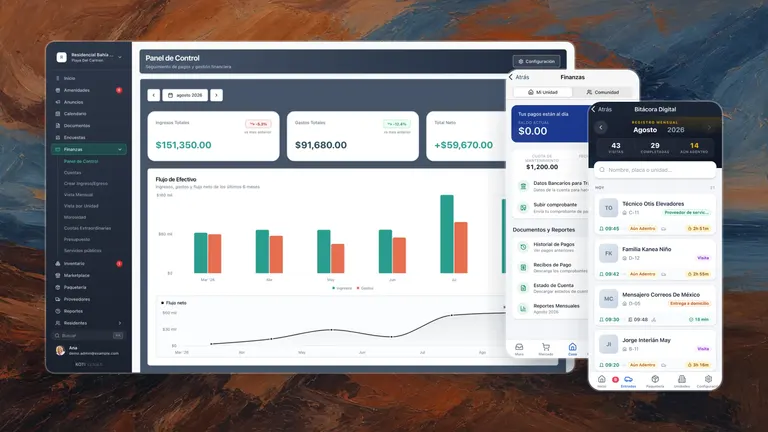
Split the access, not the control
Koti runs your community’s finances, security, amenities and communication in one place — and now each person on your team only enters their own area.